Invoices
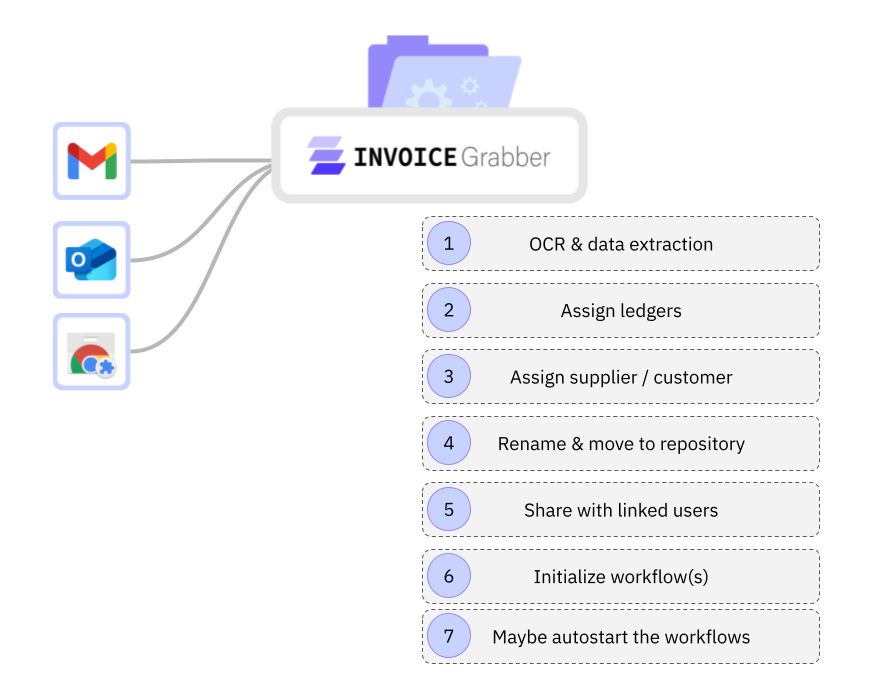
Each invoice, independently of source, will pass these steps:
- OCR and data extraction
- Ledger assignment based on IBAN, tax ID, or legal name, or learned rules
- Relation assignment (supplier/customer)
- Rename & move files to repository - according to the ledger settings to which the invoice is assigned
- Share with linked users
- Initialize workflows
- Maybe autostart workflows
Data Extraction
Each PDF invoice will be read (in case an invoice is accompanied by a UBL XML, that data takes precedence). The extracted data is used to orchestrate the invoices.
The following data is extracted:
- Invoice Reference: The unique Reference number for the invoice.
- Vendor: The vendor information of the invoice
- Recipient: The recipient information of the invoice
- Payment: The payment information of the invoice.
- Items: The items listed in the invoice.
- Totals:
- Subtotal
- Tax Amount
- Tax Rate
- Total
Ledgers
Each invoice is assigned to a ledger (= account). The ledger can be:
- a legal entity
- a company
- a business unit
- a personal repository
- ...
Either invoices are assigned manually to the ledger, or the automated parsing will try to match the invoices to the ledgers, given the meta information such as tax id, IBAN numbers, etc.
Each time an invoice is assigned manually to a ledger, the system learns the association and will start automatically assigning to the ledgers after it reaches enough confidence.
Given the ledger, the invoices will become visible to the users who have access to that ledger. The ledger also dictates the storage location (linked storage such as Google Drive, Microsoft OneDrive,...) and the naming rules of the files.
Invoice data
In the dashboard, you can see the invoices listed. You can edit the information directly in the grid or do bulk actions.
invoice grid
All invoices are listed in the grid. Sorting is possible when clicking on the header. Each row shows a single invoice. An invoice can have multiple documents which can be viewed in the documents cell.
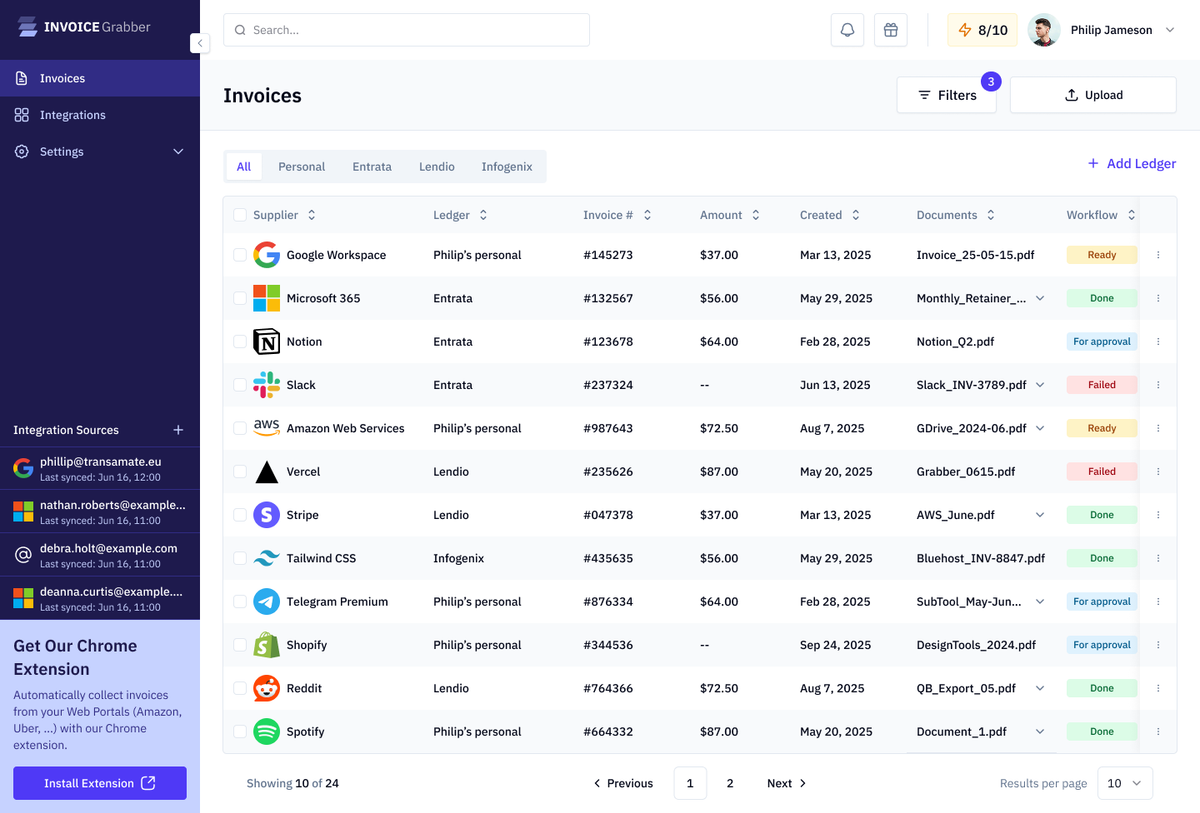
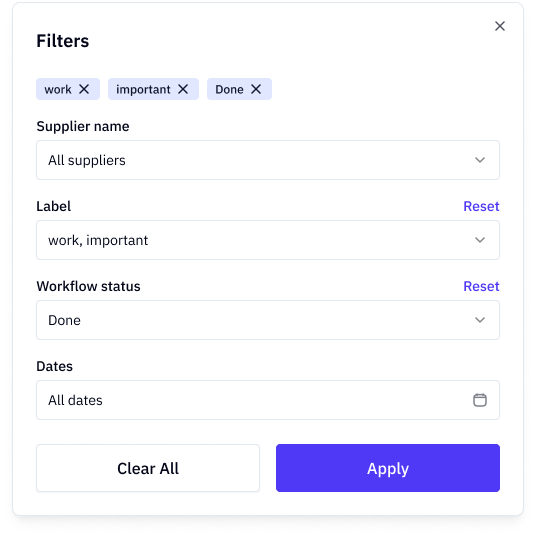
You can filter the invoice grid by clicking on the filters button. Clicking any of the ledgers will filter the grid instantly for the given ledger.
Filtering the grid:
Click on the filter button to open the filter panel.
Editing invoices (Grid)
You can edit invoices by clicking on any cell. Depending on the column, a different editor will open. The changes will be saved automatically. When typing tab or an arrow key will be considered a save (similar to Excel).
Bulk editing invoices (Grid)
Apart from individual updates, you can bulk edit invoices. To open the bulk action panel, select invoice lines. The bulk editing panel will appear:
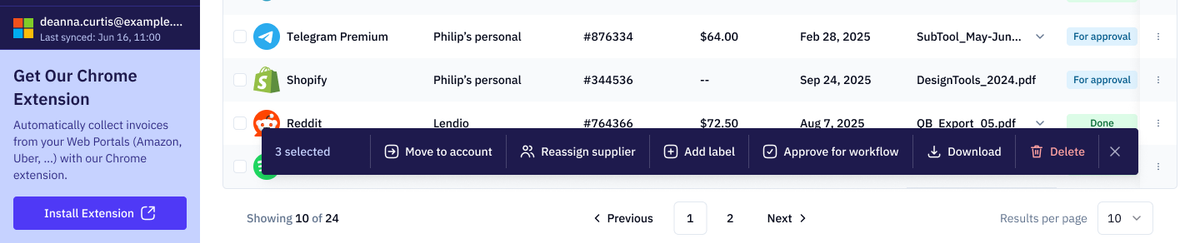
In the bulk panel, you can:
- Assign to a ledger
- Reassign a supplier/customer
- Add tags/labels
- Initialize workflows
- Download invoice documents (zip file)
- Delete invoices

