Organize with Ledgers
Ledgers can be seen as 'accounts' or 'account entity' to which we can assign invoices. For example, if your inbox has both personal invoices and work-related invoices, you could create 2 ledgers, one for your personal invoices and one for the professional invoices, so they remain segregated.
Creating a ledger
You can create a ledger either from:
- the main invoice page, click on add ledger
- the ledger settings page, click on add ledger
When adding a ledger, the add ledger form is shown.
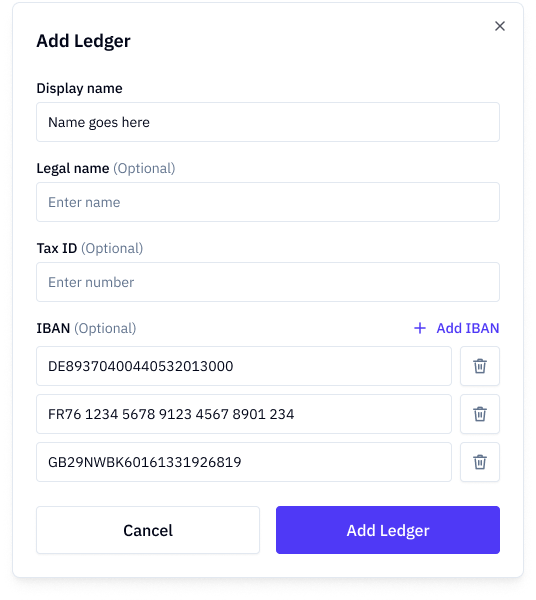
Add at least the display name, all other fields are optional, but highly recommended for automated invoice sorting to the appropriate ledger. Based on Tax id (e.g. VAT number) or IBAN numbers, the invoice will be assigned automatically. (If there is no direct match, invoices will be assigned to your default ledger).
Editing a ledger
in the ledger-settings > click on the ledger you want to edit.
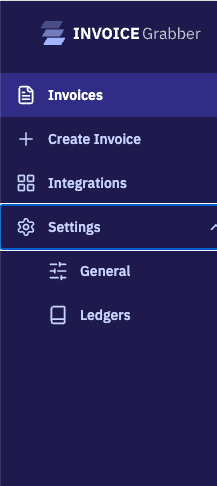
then in the ledger settings > meta data tab you will find:
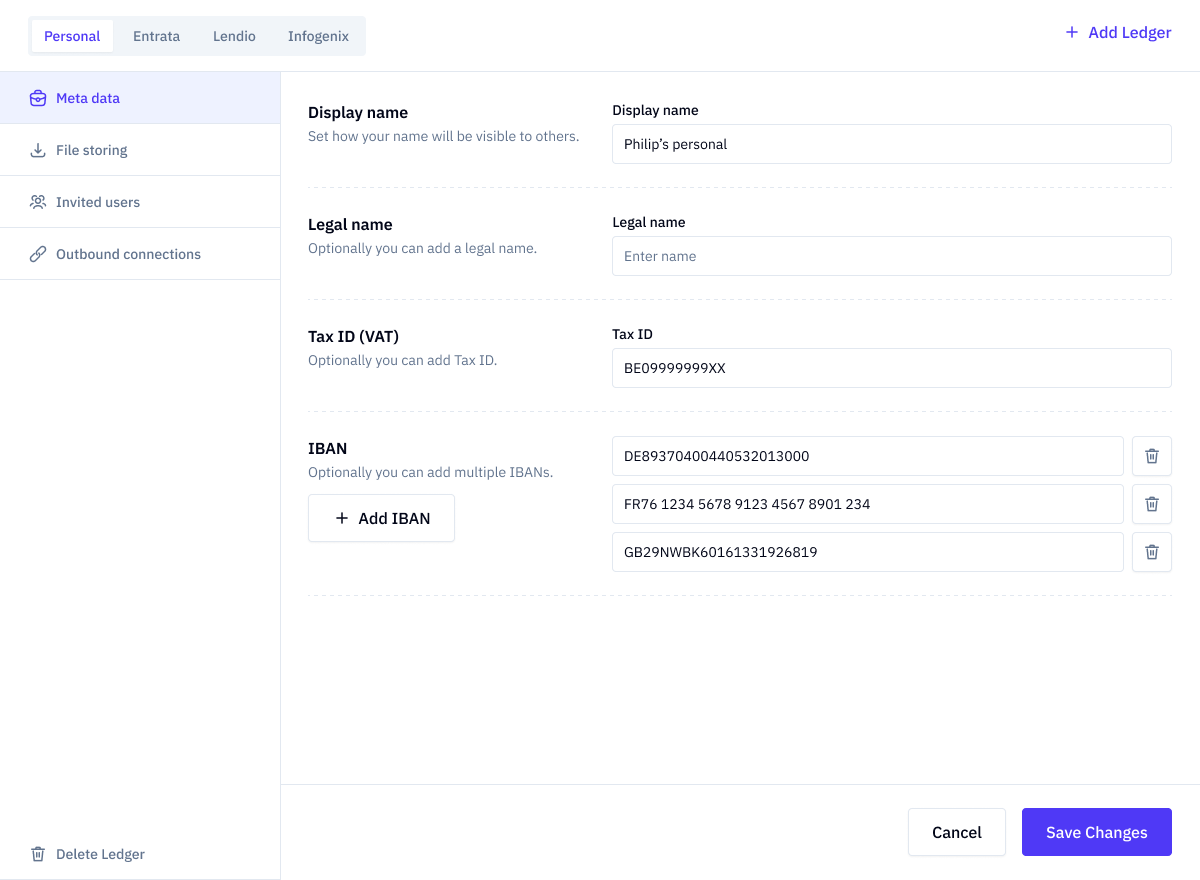
Removing a ledger
On the settings page (Settings > ledgers > your ledger), click on the delete button, bottom left.
You will be prompted with the action to take with the assigned invoices:
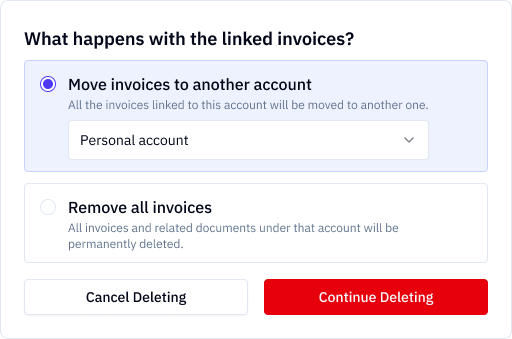
In the case an alternative account is selected, all invoices will be assigned to that ledger.
Note: this means that the documents will be moved to the storage location of that ledger, and the naming convention will be respected.
When removing the invoices, the invoices will be removed.

